Confidence Scores and Quick Fixes
The custom page opens to a vulnerabilities list similar to the issue list of the native SonarQube interface. However, this list only includes the issues detected by CogniCryptSAST. When first opening this page it can take a little while for the issues to show as the confidence scores are calculated before any issues are shown. However, as the scores, once calculated, are saved in the backend loading issues will be much faster the next time the page is accessed.
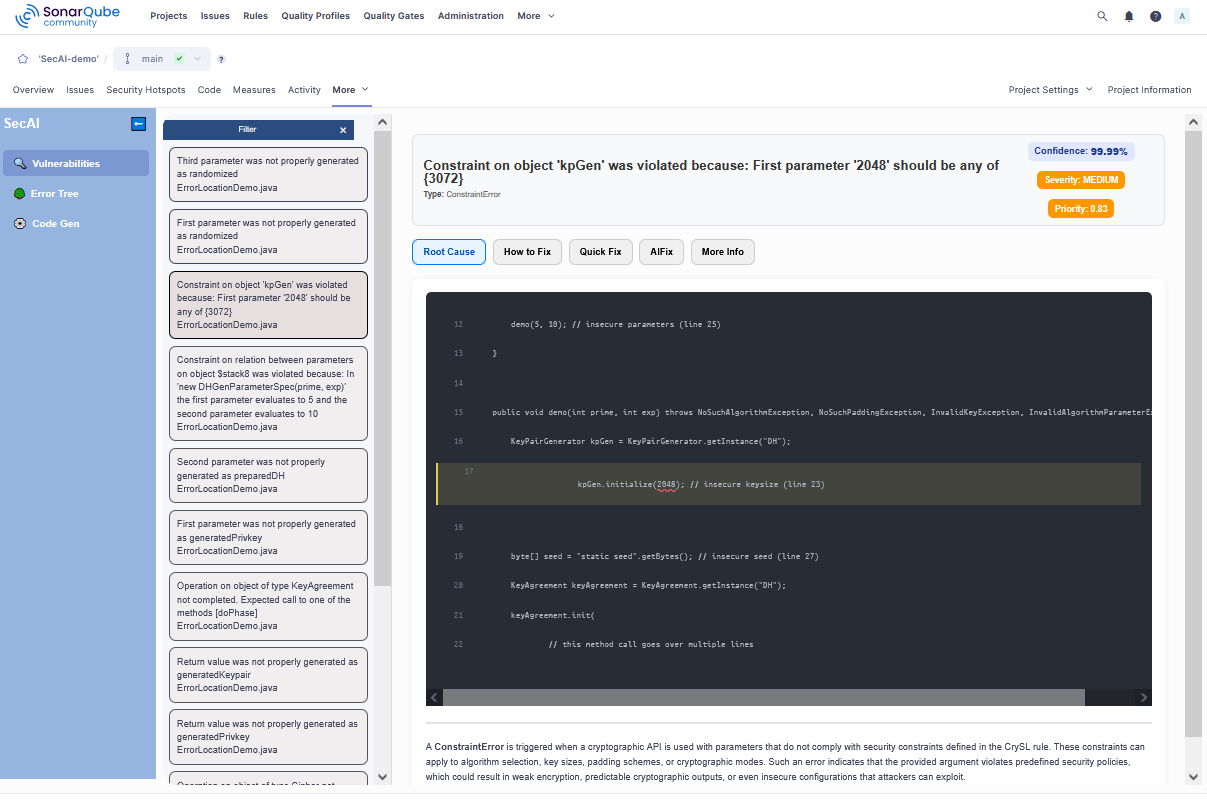
Once the list of issues is populated you can open a detail view for each issue which includes Confidence Scores and Quick Fixes as well as access to the AIFix feature. The list itself contains the error messages and file names.
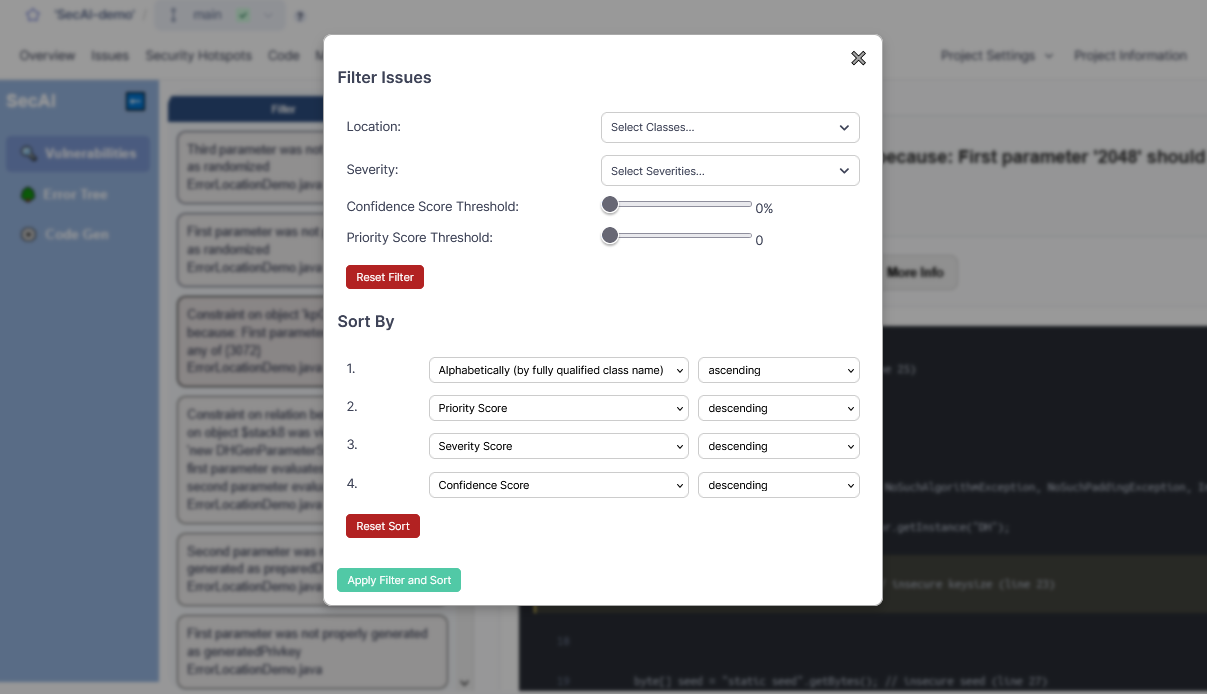
You can filter and sort the list using the filter button at the top of the list. The x next to it resets the filter.
Detailed Issue Information
The header of the detail view contains the error message, the error type right below the message, and three scores which are explained below. Underneath the header there are tabs to switch between different sections of the detail view: Root Cause, How to Fix, Quick Fix, AIFix (see here), and More Info.
The initial tab is Root Cause which contains a highlighted code snippet and a general description of the error type. The tab How to Fix instead explains the CrySL rule that the SonarQube rule was based on. However, as these descriptions are static the dynamically generated error message above tends to contain the most relevant information.
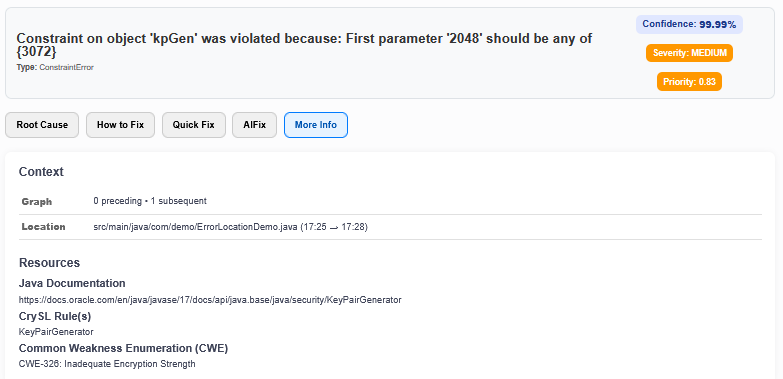
Under the More Info tab you can find additional information, such as CWE references and a link to the relevant official Java documentation. This tab also lists the number of preceding and subsequent issues, though the error tree provides a much better overview.
Confidence, Severity, and Priority Scores
In the top right you can see three scores.
The first is the Confidence Score, signifying how confident the plugin is that this issue is a true positive. Therefore, a low percentage means that an issue can likely be ignored while actual issues will have a high percentage. Details on how this score is calculated can be found here.
The second score is the Severity, with potential values INFO, LOW, MEDIUM, and HIGH. The SonarQube serverity of BLOCKER was not used. This score is assigned based on the error type and the violated rule, though, unfortunately the mapping is incomplete and occasionally defaults to MEDIUM.
Out of the previous two scores a Priority Score is calculated to give the user an indication which issues should be prioritized. A weighting function $ \lambda = \lambda_1 + \lambda_2$ is applied with $\lambda = 1$ to ensure that the combination of Confidence and Severity Score stays in the boundaries $[0,1]$. The priority score is then calculated as $p = \lambda_1 c + \lambda_2s$. The default weights ($\lambda_1$, $\lambda_2$) are set to $0.5$, ensuring that both scores contribute equally to the priority score. Severity levels are encoded as follows:$$INFO = 0.1,~ LOW = 0.33,~MEDIUM=0.66,~and~HIGH=1$$
Quick Fixes
For some error types we offer pre-computed Quick Fixes. If there are no quick fixes available for an issue then the tab will be listed.
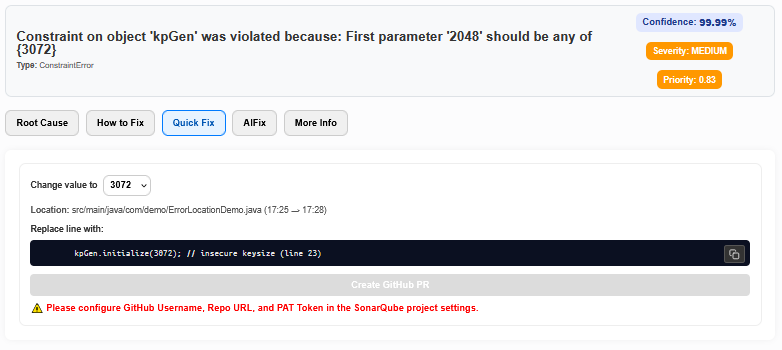
Here, you can choose one of the suggested secure values and copy the edited line into your project at the given location. It is also possible to use our GitHub PR integration.
Common Issues
No issues found
- Make sure that at least one rule from the CogniCrypt Security Rules repository is active in your projects quality profile. See first analysis steps
- This interface only considers issues detected by CogniCryptSAST. Go to the Issues tab of your SonarQube project and filter for issues tagged
cognicrypt. If there are no issues then there truly are no issues to display
Confidence Score missing
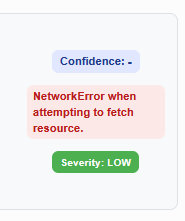
- Network error: Make sure the flask backend is running and reachable
- No CPG available: open an issue in GitHub. This may be an actual issue
In the Flaskapp folder of your backend there is a log file called fp.log. This may provide additional insight into the problem. Furthermore, the file app.log logs all http requests received and sent by the flask server.